🖼️✨ Media Node: Supercharge Your ChainForge Workflows with Images!
Welcome to Media Node! 🚀 A powerful addition to ChainForge's visual programming environment. This guide will show you how to use Media Node to add images 🖼️, boost your LLM evaluation, and prompt engineering workflows — still no coding required! 😎
🤔 What is the Media Node?
Media Node lets you:
- 📤 Upload and manage images in ChainForge
- 👁️🗨️ Add visual context to prompts for multimodal LLMs (a.k.a. Vision-Language Models)
- 🤝 Share visual prompts with your team
🛠️ How to Use Media Node in ChainForge
1️⃣➕ Add the Media Node to Your Flow
- Click the top-left
Add Node ➕button - Select 📺 Media Node from the Input Data section
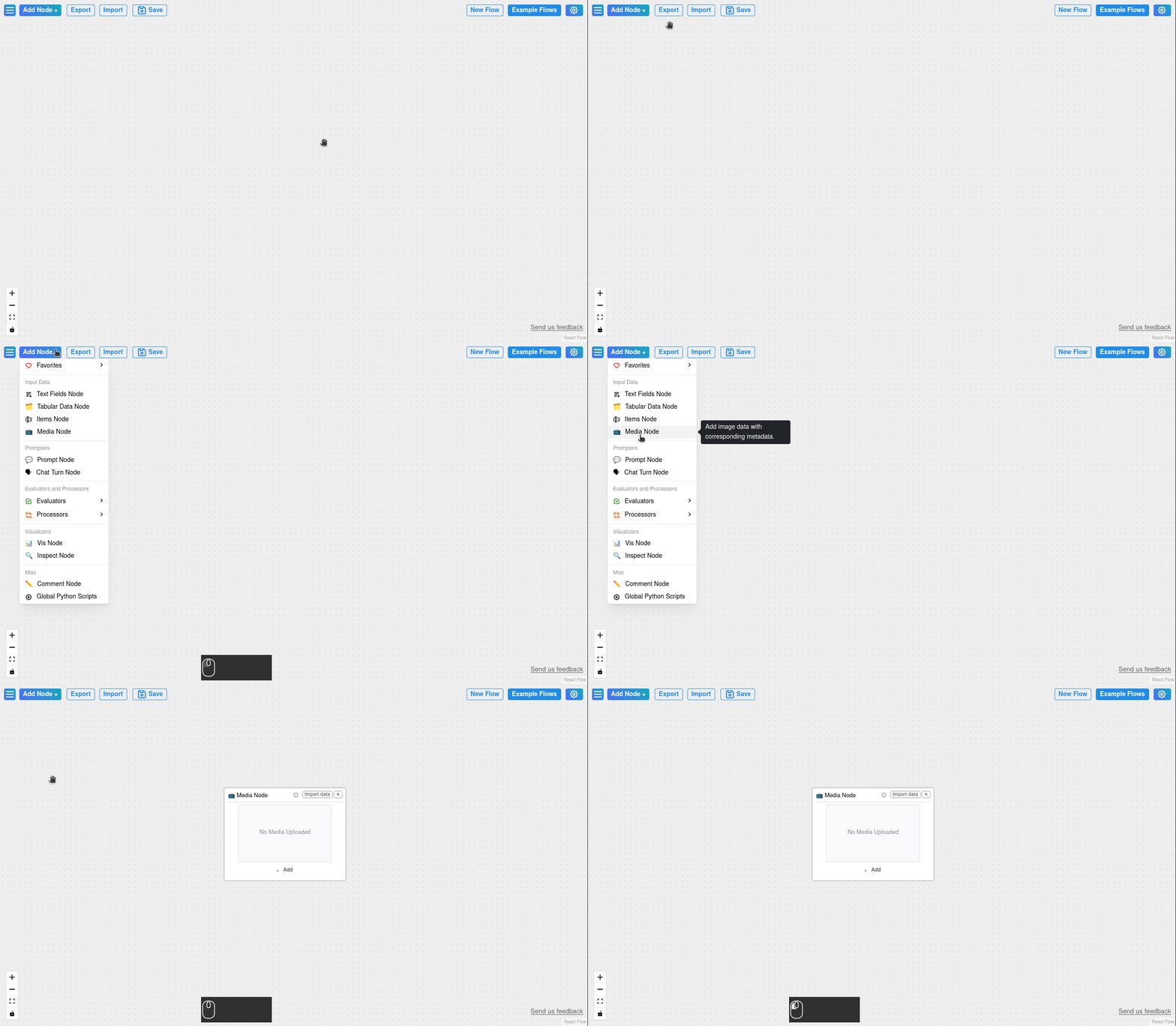
2️⃣🖼️ Add Images to Your Media Node
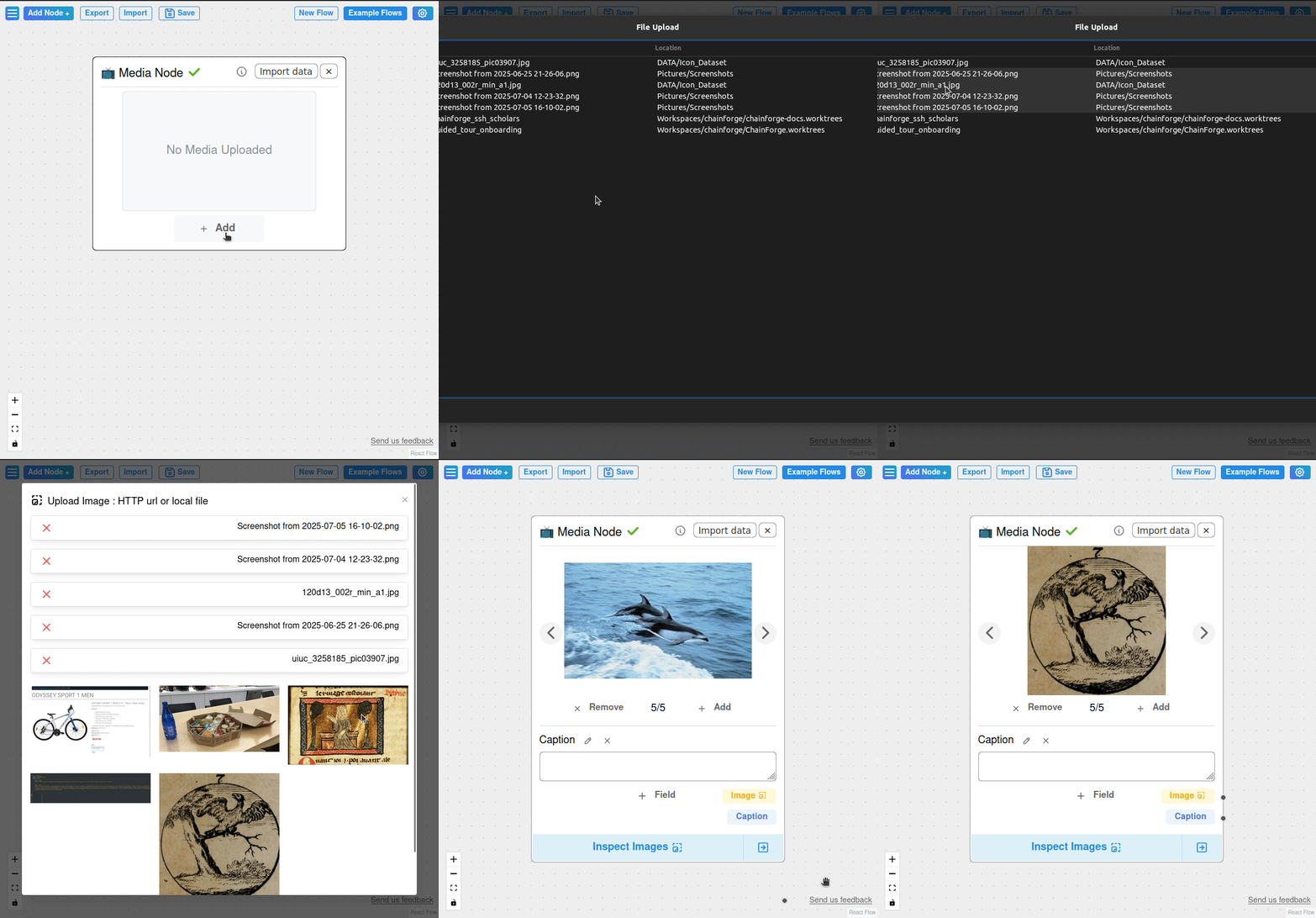
🗂️ Option 1: Upload local Image Files 🖼️ from your computer 💻
- Click the ➕ Add button of the Media Node
- Click on the Drag & Drop button to select local files
- You can Drag & Drop files
- Or you can select one or several files via the pop-up
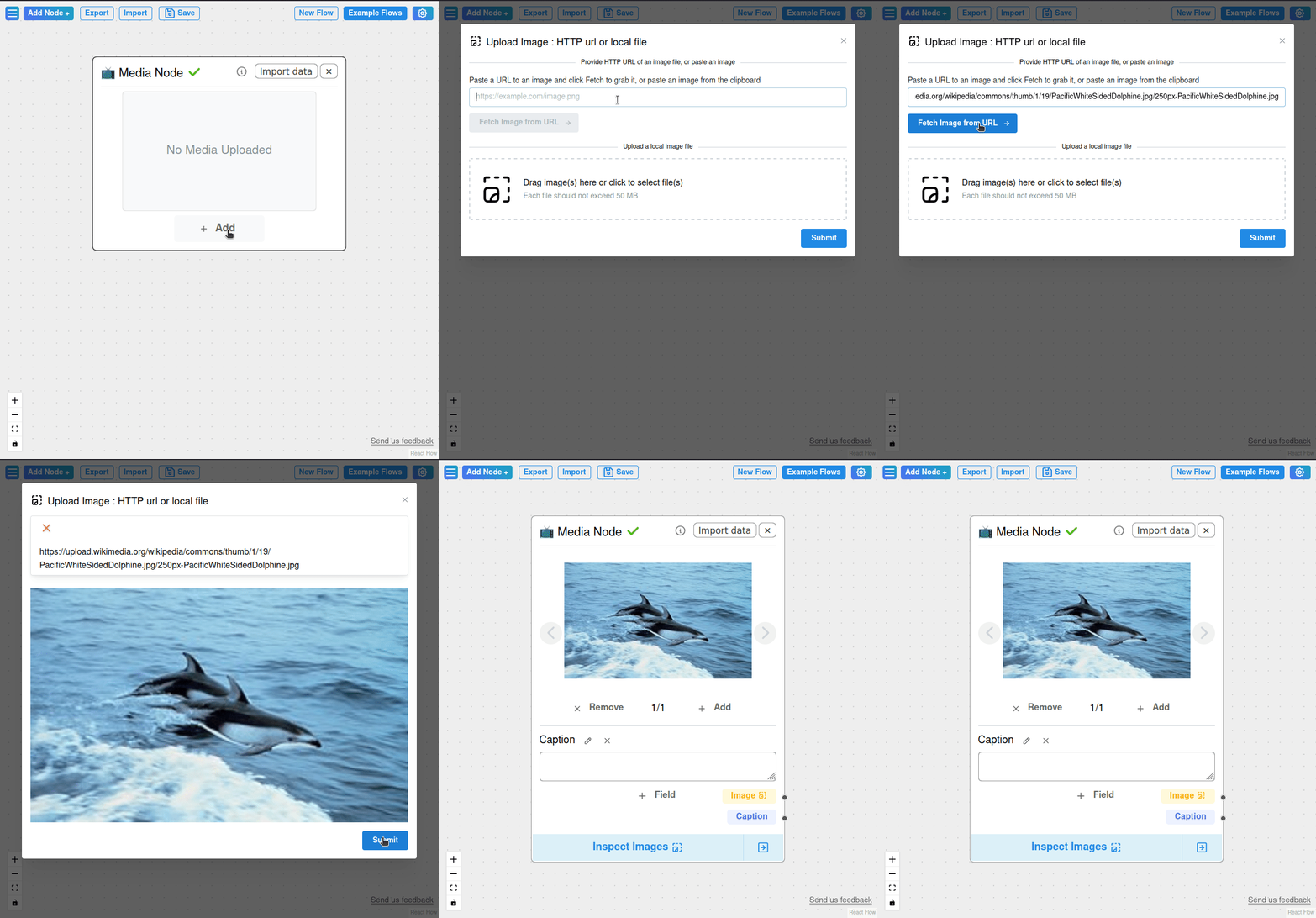
🌐 Option 2: Use Remote Images
- Click the ➕ Add button of the Media Node
- Enter a public image
httpURL 🔗 or HitCtrl+Vto paste an image (you need to focus the text field). - The image is fetched, if the link is valid.
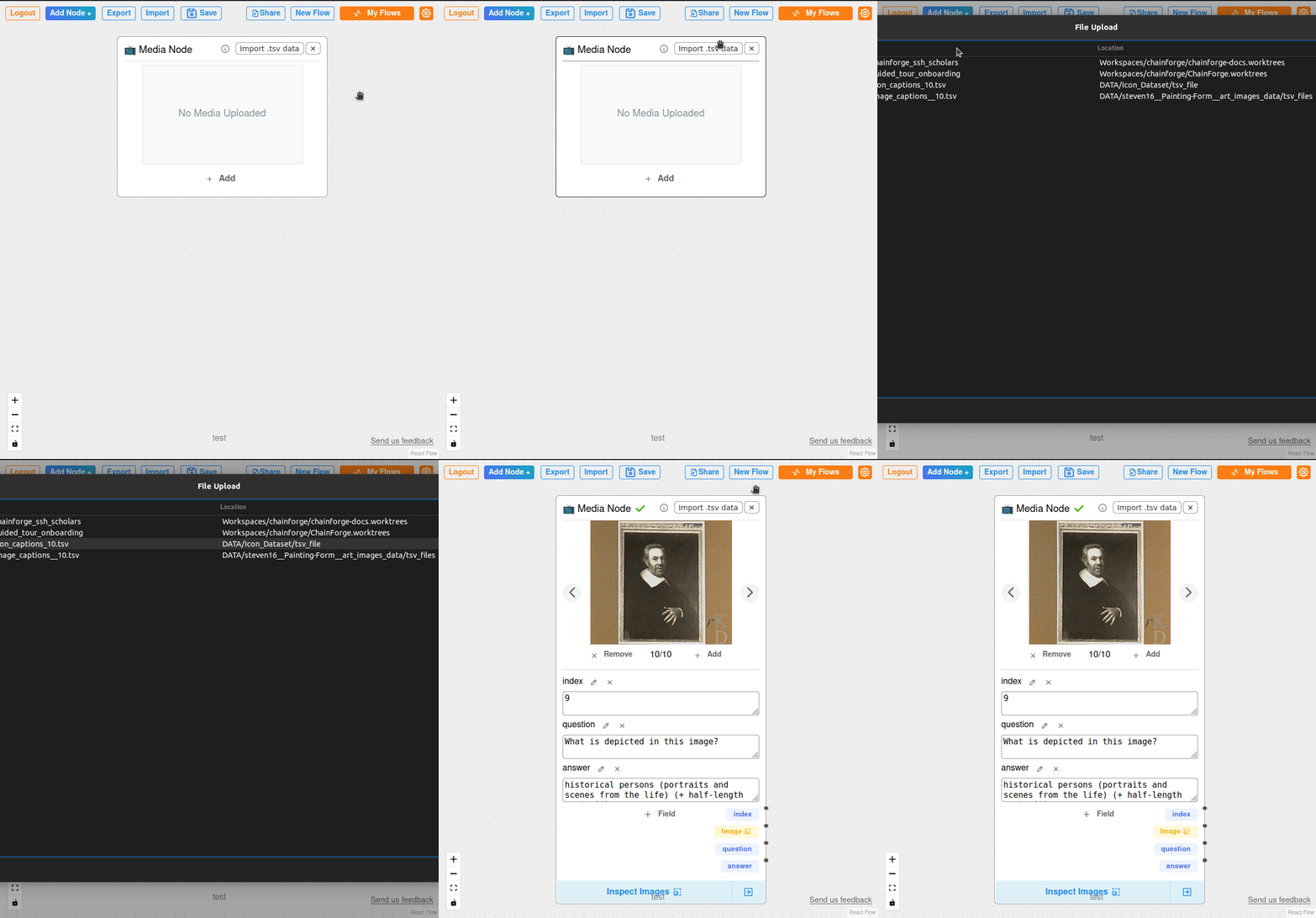
📊 Option 3: Import from Spreadsheet
- Click Import data 📑
- Select a TSV file 📥 (Click the ℹ️ info button to know what structure is expected regarding those files)
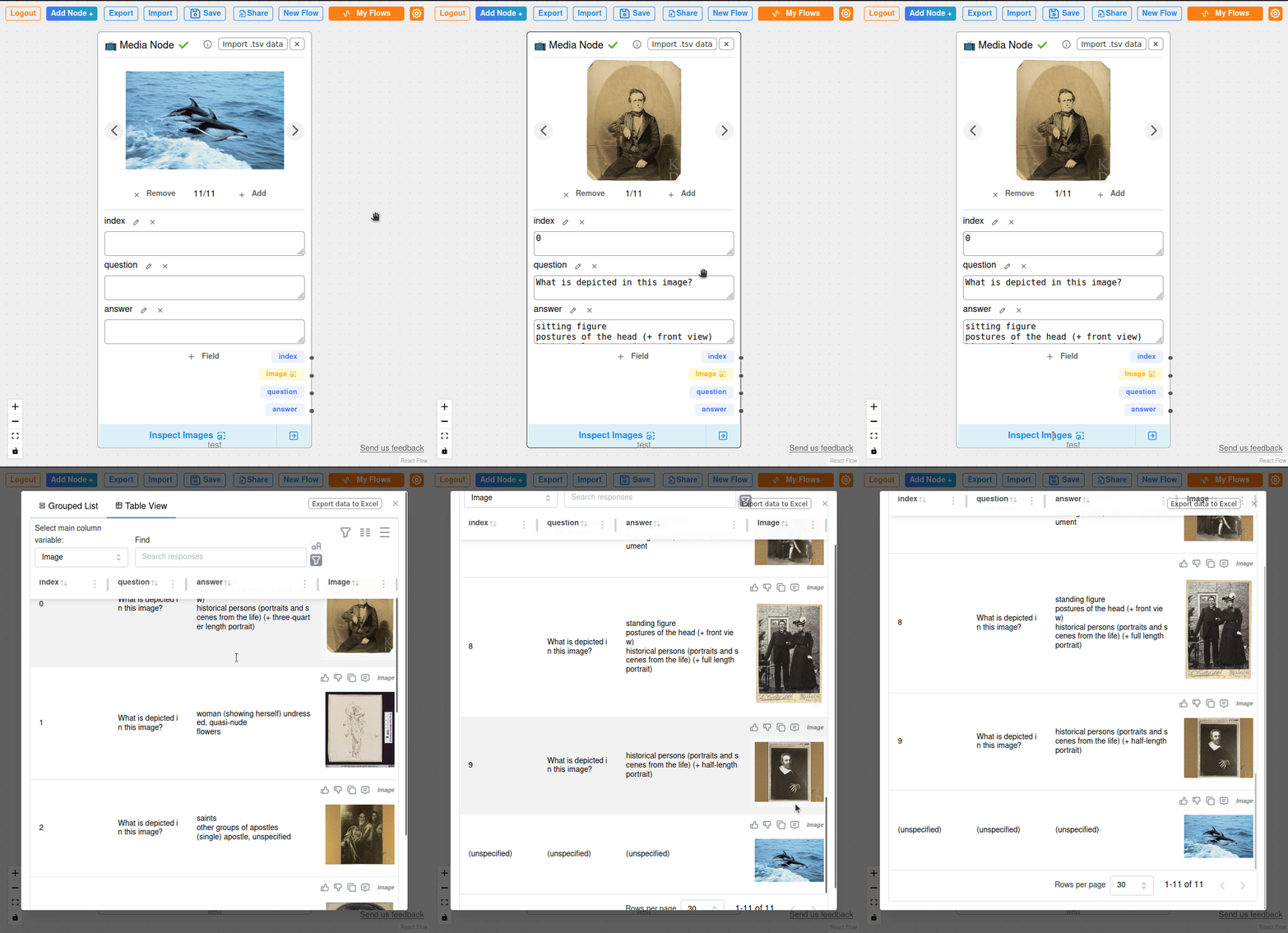
3️⃣👁️ Inspect Image & Text Field associations
- Click on the
Inspect Images 🖼️button at the bottom of the Media Node. - Click on the image thumbnail to trigger a preview window 🔍 opens with the full image and some useful metadata.
4️⃣🔗 Connect Images to Your Prompt Chain
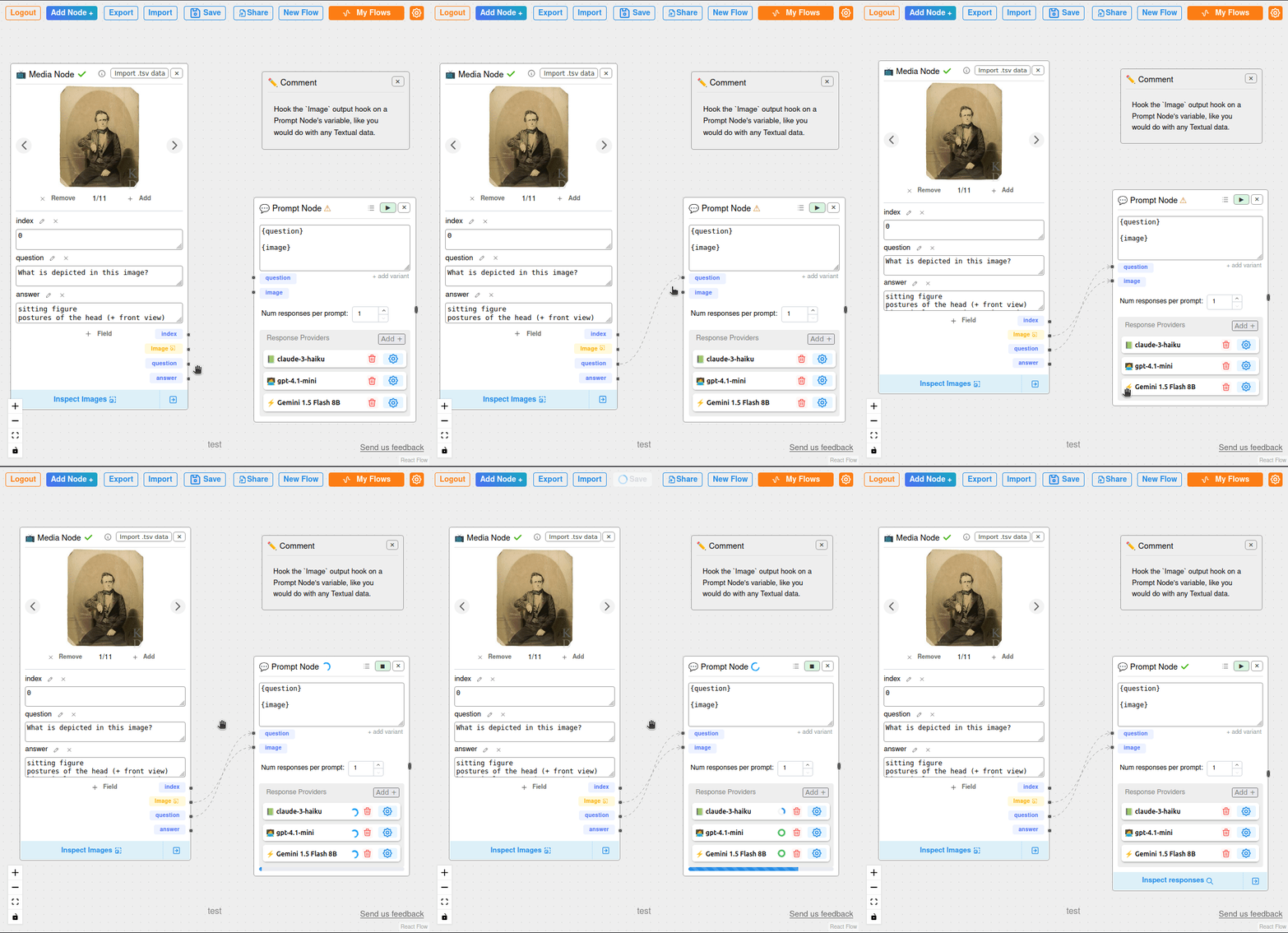
- Connect the Media Node's
output variables🔌 to a Prompt Node'sinput variables. - In the Prompt Node, create a template variable 🏷️, the same way you would for text input.
5️⃣🔍 Inspect Responses on the Prompt Node
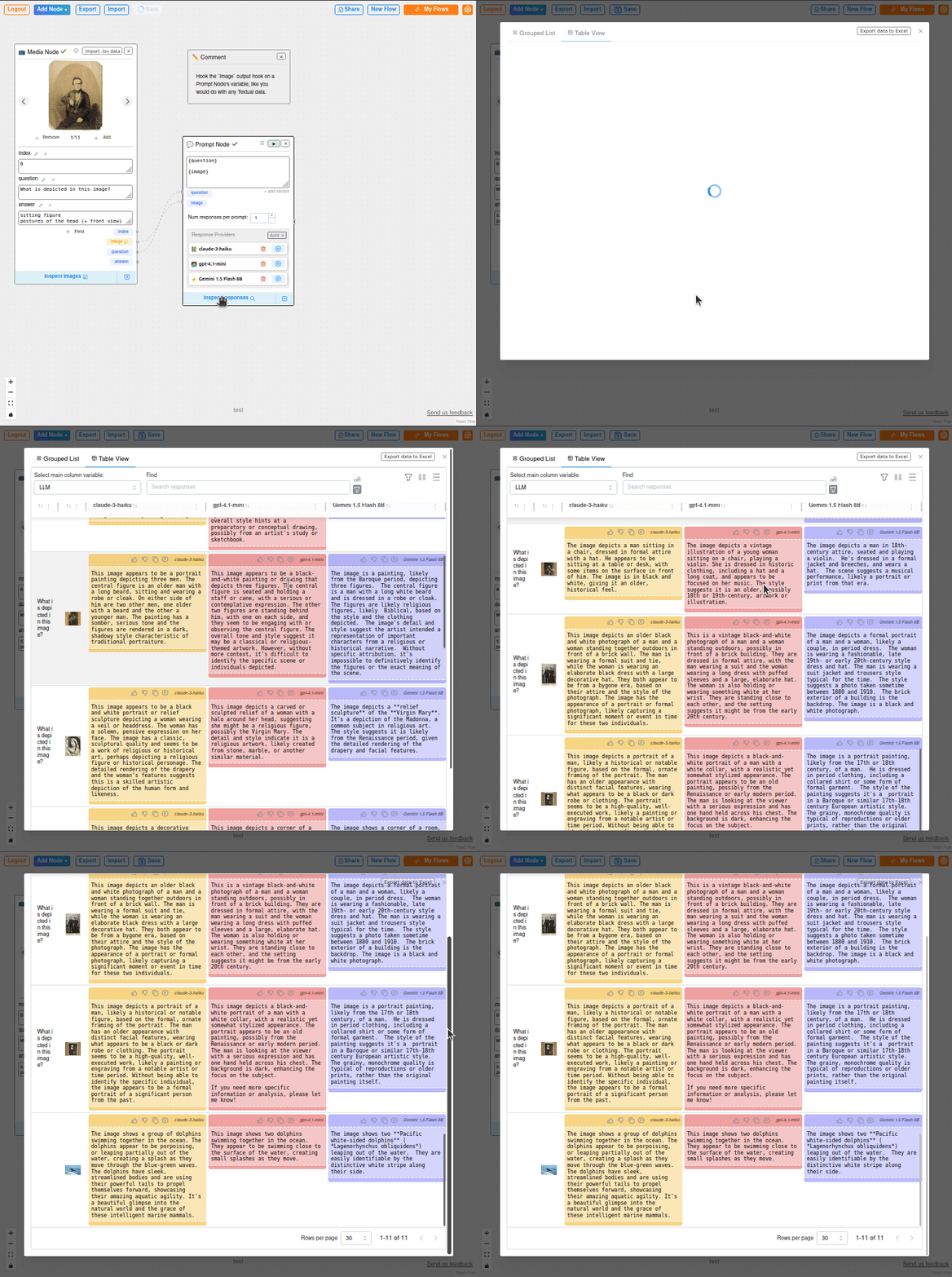
- After executing the Prompt Node, Click the Inspect Responses tab or section within the Prompt Node interface.
- Browse the list of responses generated by the LLM for each input (including images and text).
💡 Tutorial
See this tutorial for a step-by-step example of using Media Node in a ChainForge flow.
❓ FAQ
Is there a file size limit?
Yes! 🚫 Each image file should be under 50MB for best performance.
Can I delete images from the Media Node?
Yes! 🗑️ Select any image and click Delete to remove it from your flow.